
You sold a sponsor slot for the autumn. It goes into forty episodes, some of them two years old. In December the deal ends and a different sponsor takes the same forty slots. Nobody re-edits the audio and nobody uploads a file again.
That is what dynamic content insertion in Springcast is built for. It has been live since September 15. Campaigns, advertisers, assets, tags and slots sit in one place, work across every show in your workspace, and report impressions, revenue and eCPM per campaign. Elsewhere this is called dynamic ad insertion. In Springcast the clip does not have to be an ad, which is why it says content in the name.
This deep dive walks through the system as it is on the screen: the building blocks, how you manage them across a catalog, what the numbers tell you, and how you switch on your first campaign. What you see depends on your plan.
All screenshots show a demo show with made-up sponsors and made-up numbers. Your own screens will look different.
Five building blocks, one workspace
Open dynamic content insertion in the left menu and you find campaigns, revenue, advertisers, assets, tags, the joblog, show settings and shows. Underneath sit five things, each with one job.
A campaign is the deal. It has a name, the advertiser it belongs to, a status (draft, active or paused), a targeting tag, a start and end date or no end date at all, the pricing you agreed, and a budget cap or impression target if the deal has one.
An advertiser is the company across the table. Its page lists the campaigns, shows and assets that belong to it, because one advertiser can run several campaigns at once.
An asset is the audio that gets inserted. An asset can hold several versions with one active at a time: if a cough slipped into the spot, upload a cleaner version and every campaign that uses the asset plays that one. You do not create a new asset for that.
A tag decides where a campaign lands in an episode. Springcast ships four (premium, standard, house and bonus) and you can build your own set.
A slot is the place in the episode where a tag lives: one pre-roll at the start, one post-roll at the end, and as many mid-rolls as you have markers for.
None of these belongs to a single show. A campaign can run across several shows and the asset library is one library for the whole workspace. That is what lets one deal cover a catalog instead of an episode.
Tags: the waterfall that keeps a slot from going empty
Tags carry most of the logic. Link a campaign to the premium tag and it plays in every premium slot on the episodes it applies to. When that campaign stops, because its end date passed or its cap was reached, the slot does not go silent. It falls through to the next tag in line: standard, then house, then bonus. Whichever tag holds a running campaign fills the slot.
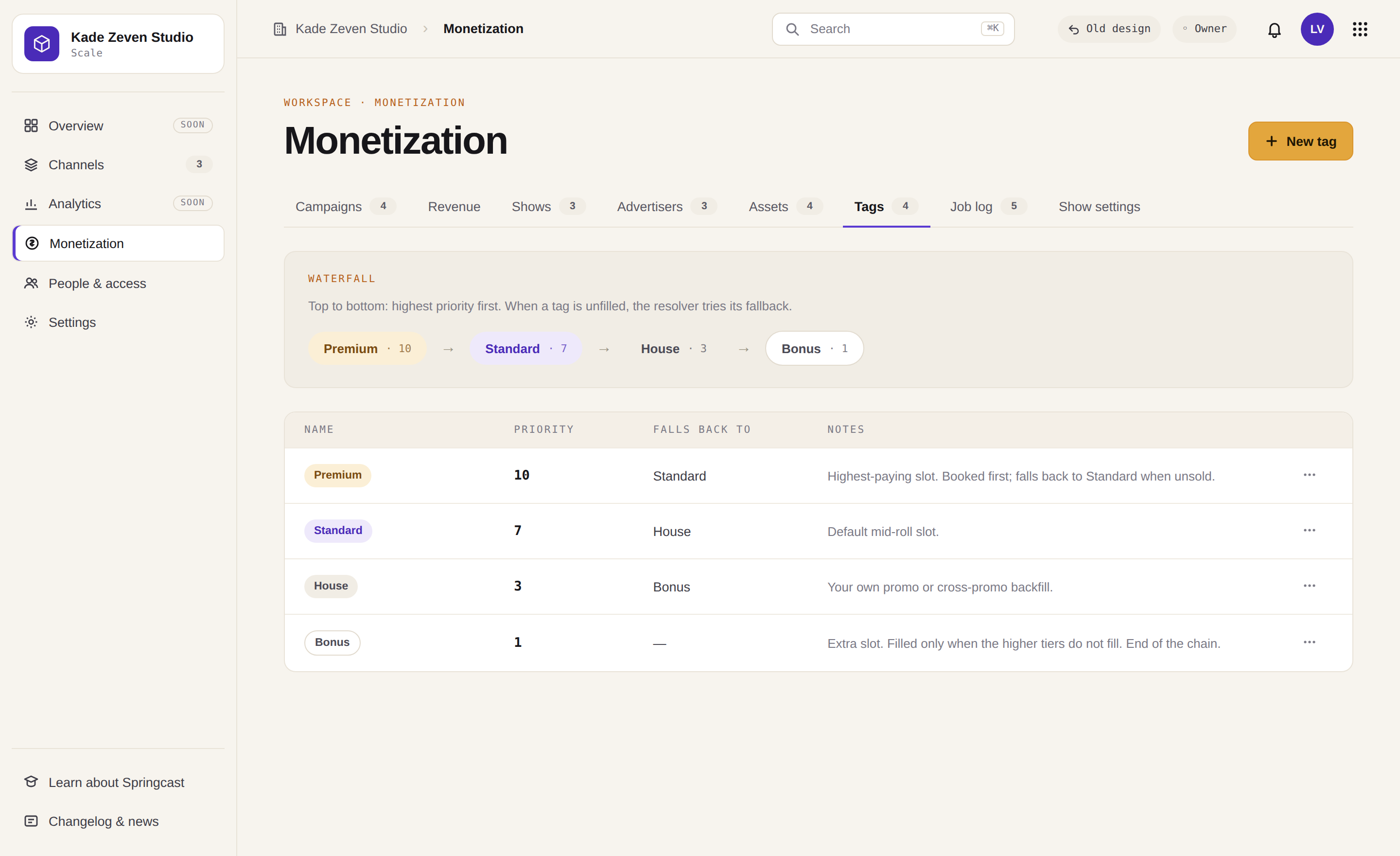
One way to use the four: premium for the paid deal, standard for the next one down, house for your own promo, bonus for what plays when nothing else does. The names are yours to change. Give your house campaign no end date and an episode always carries something current, even in the week between two sponsors.
Show settings for new episodes, bulk for the ones you already have
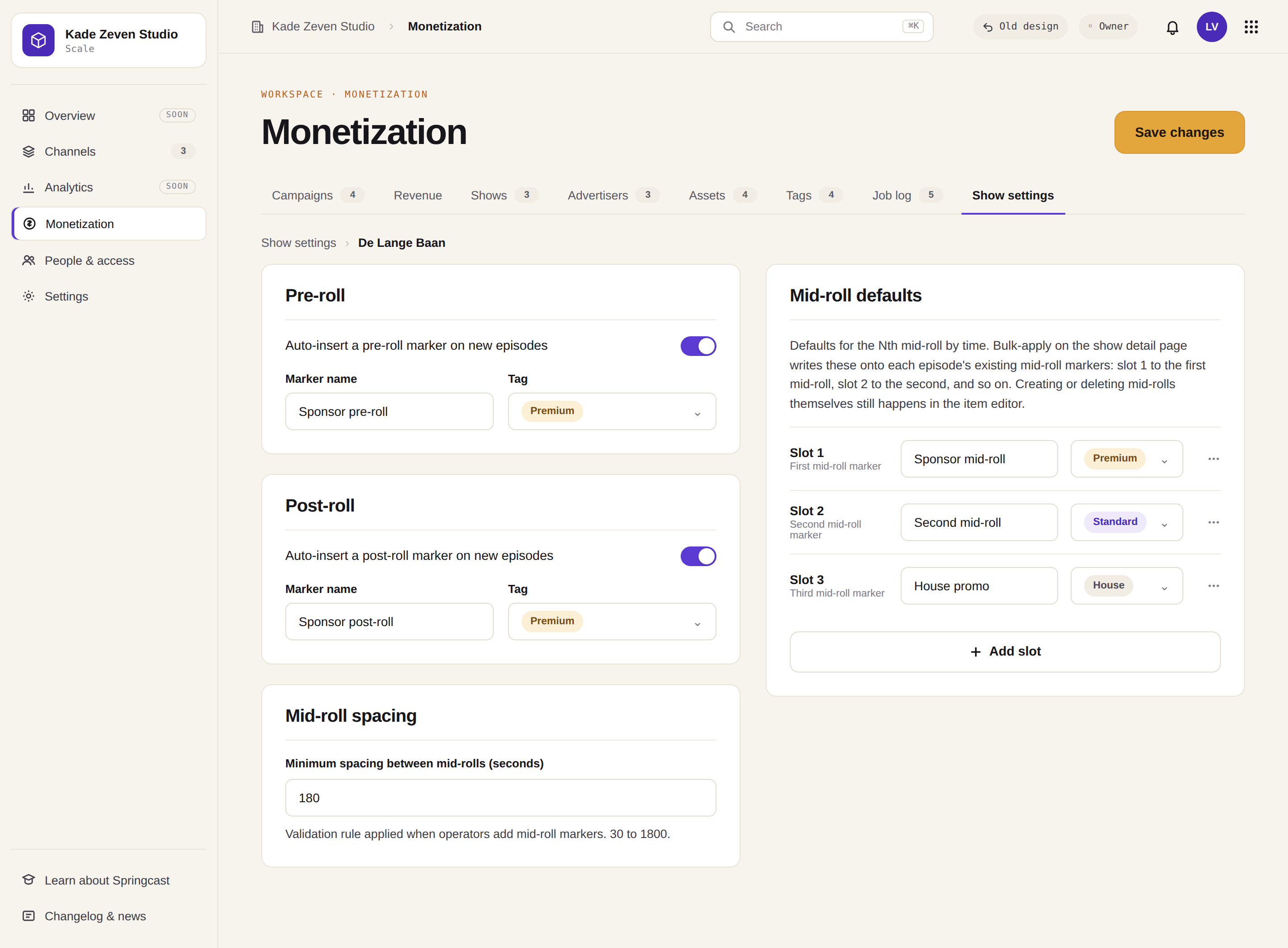
Show settings hold the defaults for every new episode: a pre-roll with a tag and a name, one or more mid-rolls, a post-roll. From then on every episode you publish gets those slots without you touching them.
For the episodes you already have, go to shows. Per show you see the episode list with the number of markers each one carries. Select one, several or all of them and apply pre-roll, mid-roll and post-roll in one go. The episodes go to pending and into the joblog.
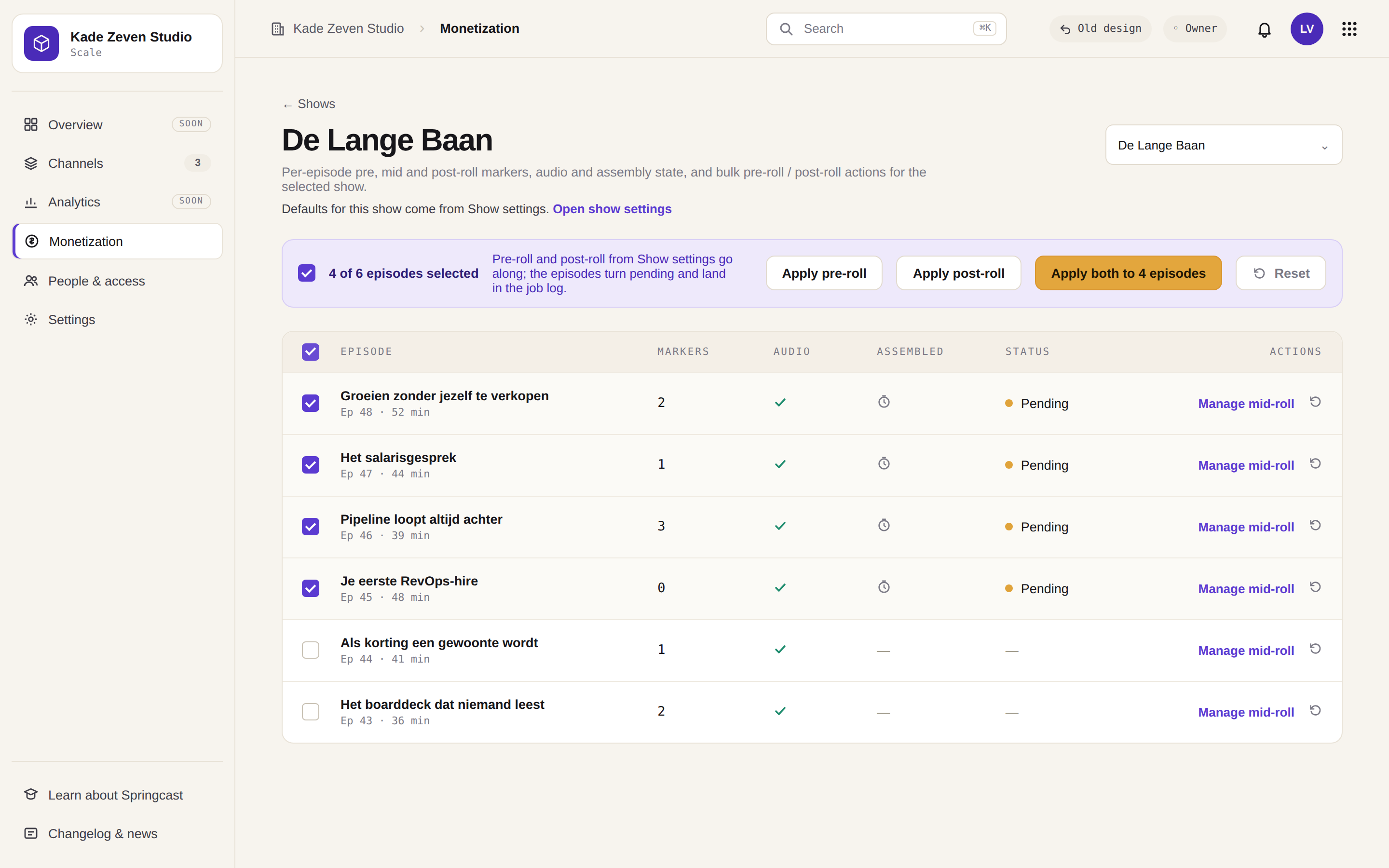
Mid-rolls fill in timeline order. Set five mid-roll slots in show settings and an episode with one marker gets the first of the five; an episode with eight markers gets the first five filled. Manage mid-roll opens the episode editor where you place markers. Reset, the rewind icon, clears the pre-roll and post-roll fill. Mid-roll markers stay where they are but get nothing assigned, so the original audio file comes back.
The joblog: every change is a new audio file
Every change in a campaign or an episode leads to a newly generated audio file. That does not happen in real time. The system runs it in the background every five minutes, and the joblog shows what is upcoming, what is in progress with an expected finish time, and what is done. Short files take seconds; an episode of an hour or more takes longer. A job that fails can be retried, and each job links to its episode.
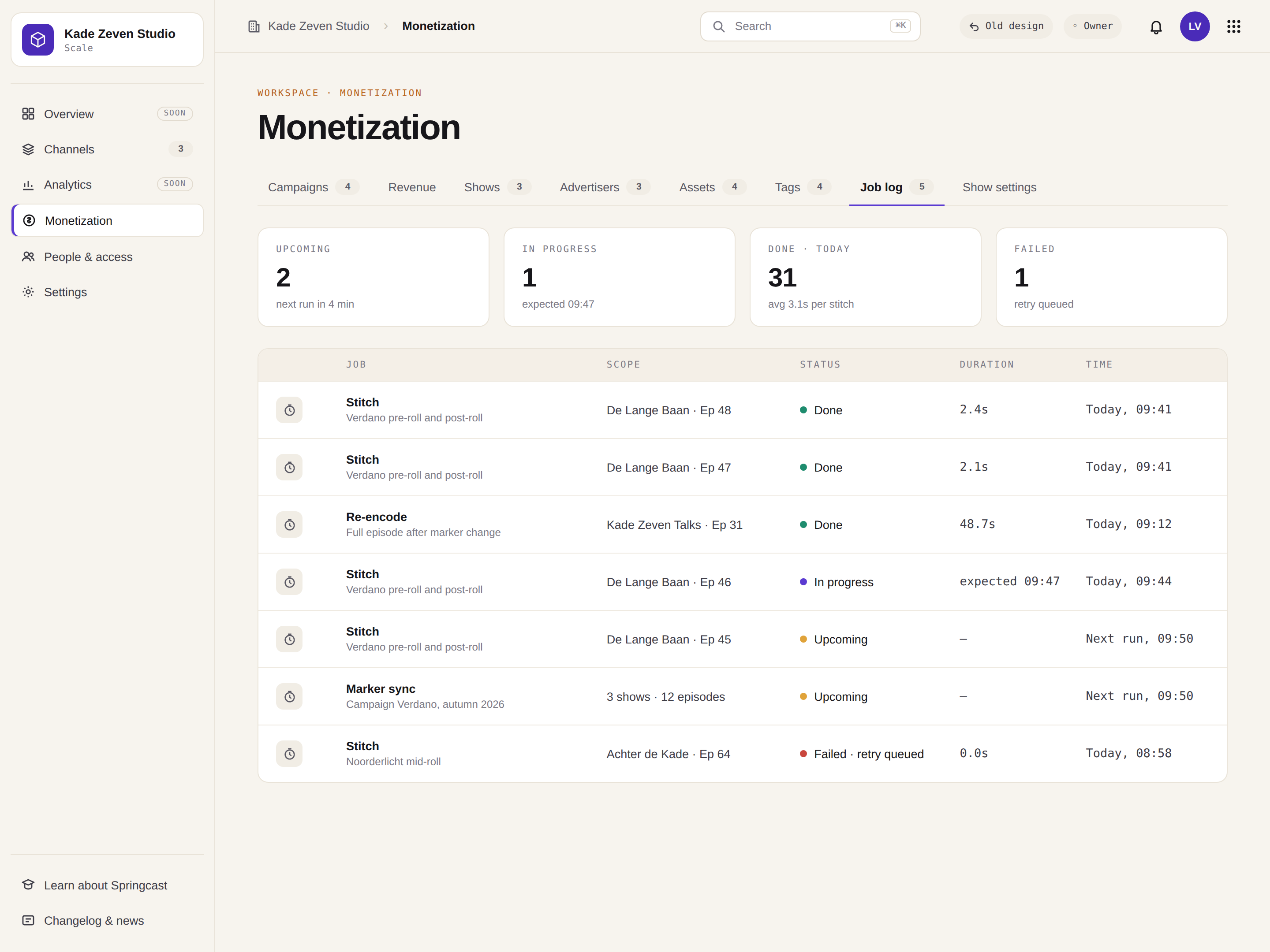
So the check after any change is the same: wait for the job to reach done, then play the episode.
What the numbers show
Open a campaign and you see which episodes it applies to, the asset it plays, its impressions, its revenue and its eCPM, with a chart of impressions per day. Revenue follows from the pricing you entered for the deal. Springcast is not part of that deal: the price is what you and the advertiser agreed, and the campaign page does the arithmetic.
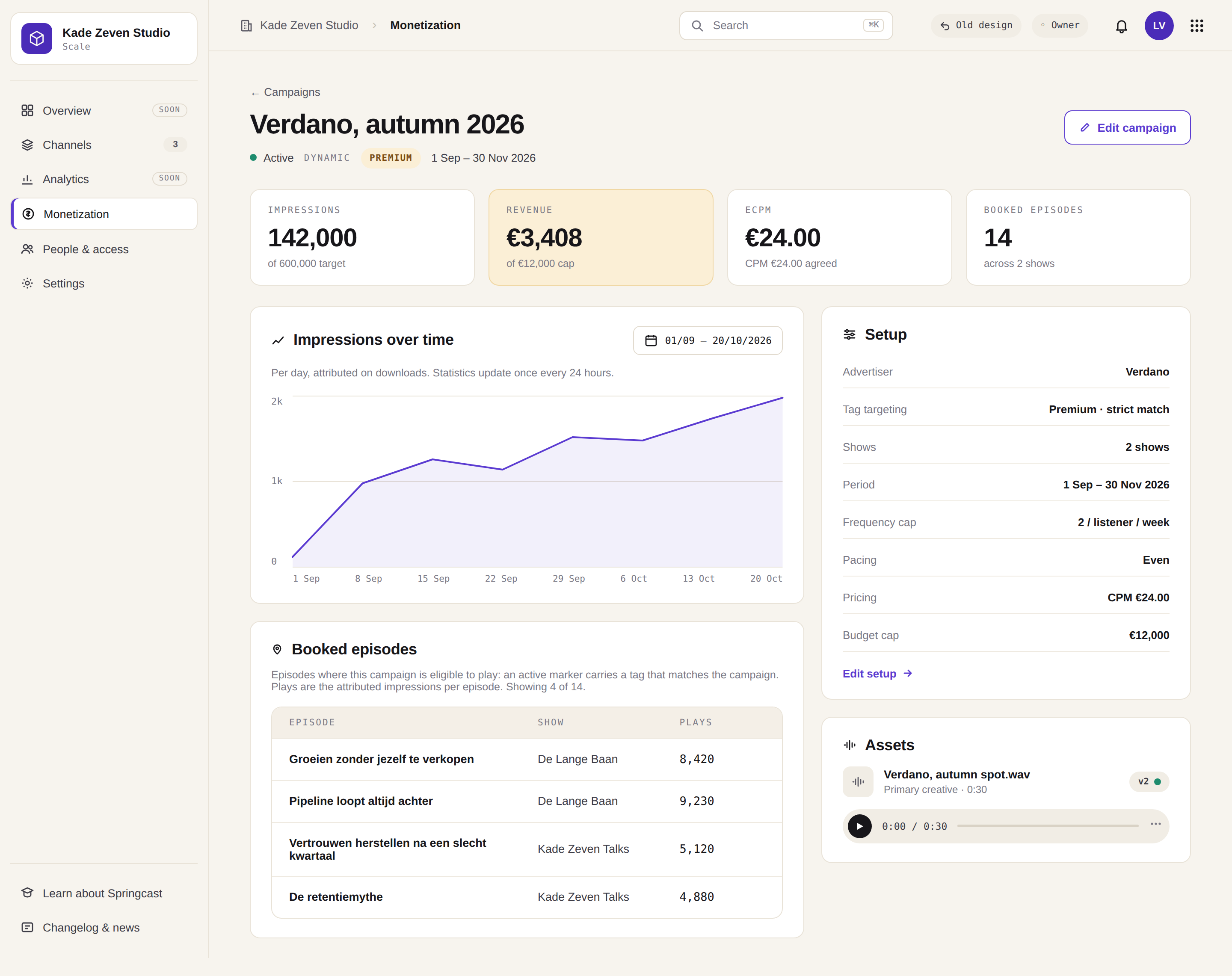
Budget cap and impression target. Set either on a campaign and it switches itself off when the number is reached, counted on downloads. Statistics are calculated once every 24 hours, so a cap reached at eight in the morning can take until the next morning to stop the campaign. Plan the cap with that day in mind.
Revenue. The revenue dashboard shows what you earned in the selected period. The date picker sits top right, the same as in your statistics. It loads the last 14 days by default and goes back as far as you choose.
Notes per advertiser. On an advertiser you keep notes of two kinds. Public notes are visible to everyone in your account. Internal notes only show on the dashboard.
What these screens cannot tell you is what a slot is worth. That depends on your audience and on the sponsor across the table. How a CPM comes about, and what pushes it up or down, is in our guide on podcast CPM rates.
Who this is for, and what tags can become
One person with two shows and a course. Your house campaign is the promo for the second show: on the house tag, no end date, across every episode of the first. The day a sponsor signs, their campaign goes on premium for the agreed weeks and the promo steps back on its own. When the deal ends, the promo is back in every episode, and nothing on your to-do list changed.
A publisher with a hundred episodes and a sponsor who wants all of them. Select all hundred in shows, apply pre-roll and post-roll once, and the deal covers the catalog. The next sponsor replaces the current one in the same slots when the dates say so. When the sponsor asks how the quarter went, the answer is on the campaign page, in impressions, revenue and eCPM.
Tags can carry more than price tiers. A show about entrepreneurship and mindset can tag its markers by subject, so a sponsor buys the entrepreneurship segments and nothing else. Length works the same way: name your tags premium (30 sec) and premium (60 sec), since the length lives in the name and not in a field, and each campaign lands on the slot that fits its spot.
What dynamic content insertion is not
It is not an ad marketplace. Nobody sells your slots for you: you bring the sponsor, or you are the sponsor, with your own course, your other show or your newsletter. You set the deal and you enter the price.
It is not an edit of your recording. You do not cut the recording, you do not export and you do not upload the episode again. What sits in the slot changes; the episode around it stays the one your listeners subscribed to, and they do nothing at their end. For the background on the technique, our explainer on dynamic insertion covers it.
It is not a promise about what a slot earns. What it changes is how much of your catalog you can offer, and how much of the bookkeeping the campaign page does for you. For the wider picture of ways to earn from a show, the hub on how to monetize a podcast sets them out.
Which plan has it
Campaigns, revenue and advertisers are available on Scale, and Company has everything in Scale. On Professional those three are switched off; markers, tags and show settings are available there. Essential does not include dynamic content insertion.
Your first campaign, in the order the screens want it
The demo below uses a made-up sponsor called Verdano. Swap in your own names and the steps are the same.
- Add the advertiser. Verdano, with a public note on what was agreed, so a colleague sees it too.
- Upload the asset. The spot as one audio file, named so you recognize it next year, linked to Verdano. A corrected spot later becomes a new version of this asset.
- Check your tags. Load the four defaults or build your own set. Where a campaign lands depends on this.
- Set show settings. A pre-roll and a post-roll with the premium tag, and the mid-rolls you want new episodes to carry.
- Create the campaign. Name it after the sponsor and the period: Verdano, autumn 2026. Link the advertiser, choose the premium tag, pick the asset, set the start and end date, enter the pricing you agreed and the cap if there is one. Leave the status on draft while you set up the episodes.
- Apply it to the catalog. Go to shows, open the show, select the episodes that should carry it and apply pre-roll and post-roll. They turn pending and land in the joblog.
- Set the campaign to active and listen. Wait for the jobs to reach done, then play an old episode. Hearing the spot is your check that the campaign runs where you meant it to.
When the spot changes, upload a new version of the asset. When the deal ends, the end date takes it out and the waterfall fills the slot with whatever runs next. If you sell more than one position per episode, the guides on pre-roll, mid-roll and post-roll placement and on setting your CPM and budget cap go further.
If you are on Scale or Company
Log in, open dynamic content insertion and create your first campaign. Start with the one deal that has a date on it.
If you are on Professional or Essential
Campaigns, revenue and advertisers start at Scale. Compare the plans and pick the one that fits the catalog you want to sell.
If you are new here
Start a trial and put your own show in it. Fourteen days, no credit card, and your data stays in the EU from the first upload.