
You write the monthly podcast update in the same place you write everything else these days: with an assistant open in the next tab. The numbers it needs live in Springcast. So you read a number, switch tabs, type it, switch back. Then you start on the part that needed you: what the numbers mean.
Since September 15, that middle step is optional. Springcast speaks the Model Context Protocol, through a Content API and an Analytics API. Connect Claude, or any other assistant that supports MCP, and you can ask your own data questions in your own words. The MCP connection is on Scale and higher.
This deep dive is about what that connection is for: the two APIs, three questions worth asking in your first week, what the connection does not do, and how you set it up. What MCP is, explained without the jargon, is covered in what MCP means for podcasters. A full session, from one prompt to a scheduled episode, is in managing your podcast from ChatGPT or Claude. This piece starts where those two stop.
The screenshots show our own show, Rainmakers, and our own Springcast workspace. Your own screens will look different.
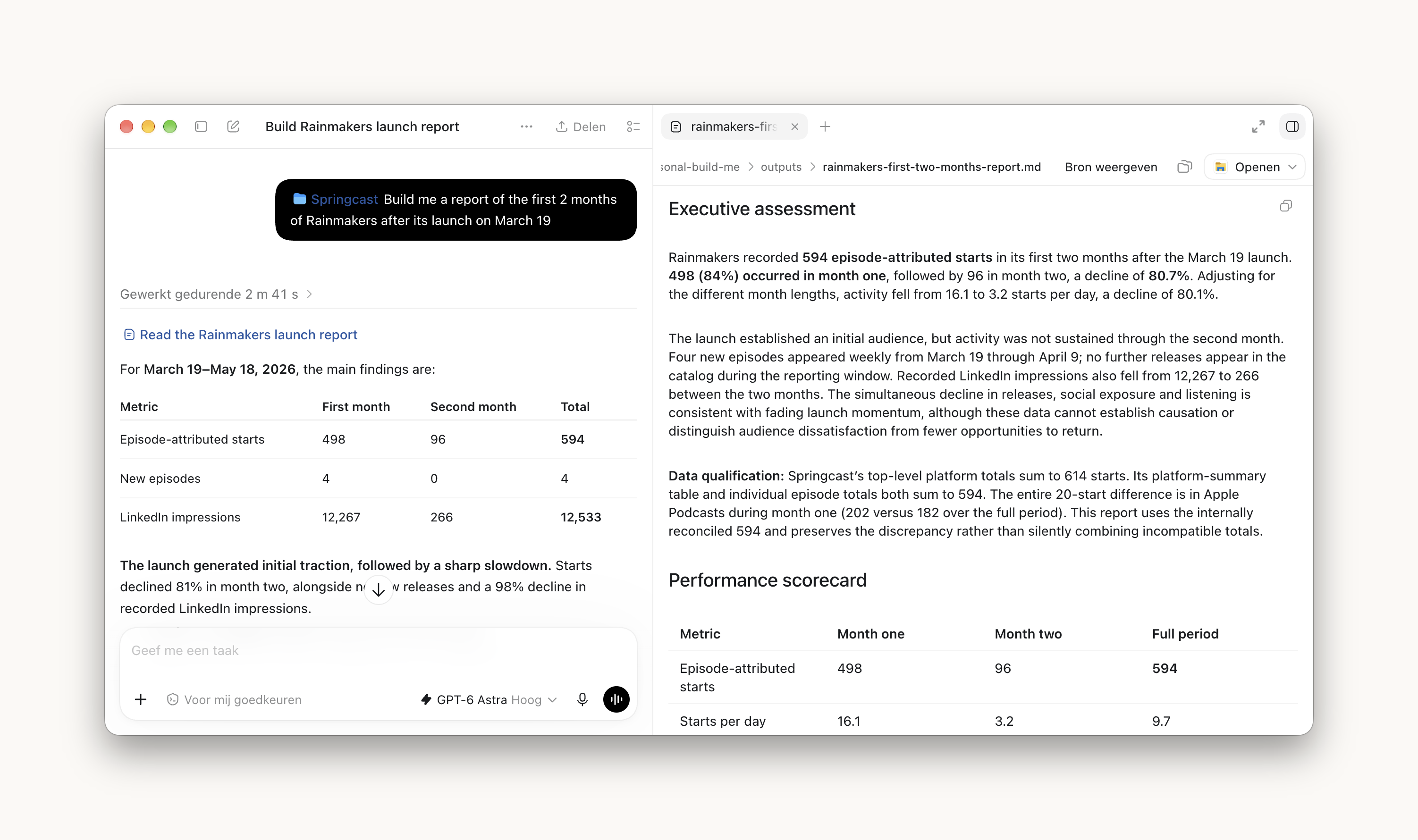
What went live on September 15: two APIs, one connection
The connection has two sides, and it helps to know which one you are talking to.
The Content API covers what is in your show: episodes, descriptions, transcripts. Through it, your assistant can draft show notes from a transcript, or write a description in the tone you already use.
The Analytics API covers the numbers: which episode held attention longest, where the drop-off starts, how listening breaks down by platform and geography. This is the side this article spends most of its time on.
Both sides read the account you log in to, at the moment you ask.
Your week, before and after
Before: Analytics in one tab, the update in another. You know which numbers you need, because they do not change from month to month, and you type them over one by one. When someone asks a follow-up question in the meeting, the answer is "I'll look it up".
After: the update and the numbers are in one window. You ask and read the answer, then decide what goes in. The follow-up question from the meeting goes into the chat, in the same words the person used.
You still decide what the numbers mean and what belongs in the report. You stop being the copy-paste step between two tabs.
Which episode held attention longest last month?
You already know which episode had the most downloads. It sits at the top of the list, and it is usually the one you promoted hardest. What you do not know is which episode people stayed with. That is a different list, and it is the one that tells you what to make more of.
What you ask. "Which episode held attention longest last month?" That is the whole prompt. Add "and by how much" if you want the figures in the answer.
What comes back. Last month's episodes, ranked by how long people stayed, with the figures behind the ranking. It is the data you would find in Analytics; the difference is that the assistant read it for you.
What you do with it. Put that ranking next to the download list in your update. When the two lists disagree, you have found something: an episode that pulled people in and did not hold them, or one that few people found and most of them finished. Then look at what the top episodes share: topic, guest, length, the day you published.
Where does the drop-off start?
You probably suspect something about your opening. Too long, or the guest introduced at minute six. Checking means opening the episode page and reading a curve, so it stays a suspicion.
What you ask. "Where does the drop-off start in the latest episode?" Follow up with "and in the one before it", and you are comparing.
What comes back. The point in the episode where listening drops, and how steep the drop is. Ask it for the last three episodes and you will know whether there is a pattern.
What you do with it. A drop in the first minutes points at the edit: cut the intro, bring the guest forward. A drop later on points at the content. Either way, ask the same question about the next episode and see whether the point moved.
A monthly report you forward instead of building
The update to your manager or the owner is the job that gets retyped most. A handful of numbers in a fixed layout, every month.
What you ask. "Pull last month together in a short report I can forward: listeners, the three episodes that held attention longest, and where people played them, by platform. Plain language." Say who will read it; the tone follows.
What comes back. A draft in the shape you asked for, with the numbers from your account. Read it before it goes anywhere. The figures come from Springcast, the sentences around them come from the assistant, and the first month you compare both with the dashboard.
What you do with it. Keep the prompt. Next month you paste it in again and change one word.
Ask like you would ask a colleague
Name the period and the episode. "Last month" and "the latest episode" are clear; "lately" and "that interview" are not, and the answer will be vague in the same way. Ask for the figures behind an answer when you plan to quote it.
When an answer surprises you, open Analytics and look. Either the number is right and you learned something, or the question was unclear and you rephrase it. That check takes a minute.
The other direction: your transcript, your tone
It works the other way too. Through the Content API your assistant can draft show notes from the transcript, or write an episode description in the tone you already use. You see each draft before anything changes in your show.
How that looks in one session, from the prompt to a scheduled episode, is in managing your podcast from ChatGPT or Claude. This article stays with the questions.
What the connection does not do
The boundary is what tells you whether this fits your week, so here it is.
- Nothing happens until you connect. The connection exists only once you set it up; no assistant reads your account by default.
- It does not publish on its own. Drafts come back to you to approve. The editorial decisions stay with you; the retyping does not.
- It does not record or upload audio. That is still you, in Springcast.
- It does not check its own work. The numbers come from your account, the wording comes from the assistant. Names, quotes and any figure that goes into a report get a look from you first.
- It does not replace Analytics. When you want to look rather than ask, the screens are still there, and they are where you check an answer the first time.
Setting it up
You connect once, and you can revoke that access at any time. From then on, the assistant can read your show when you ask it to.
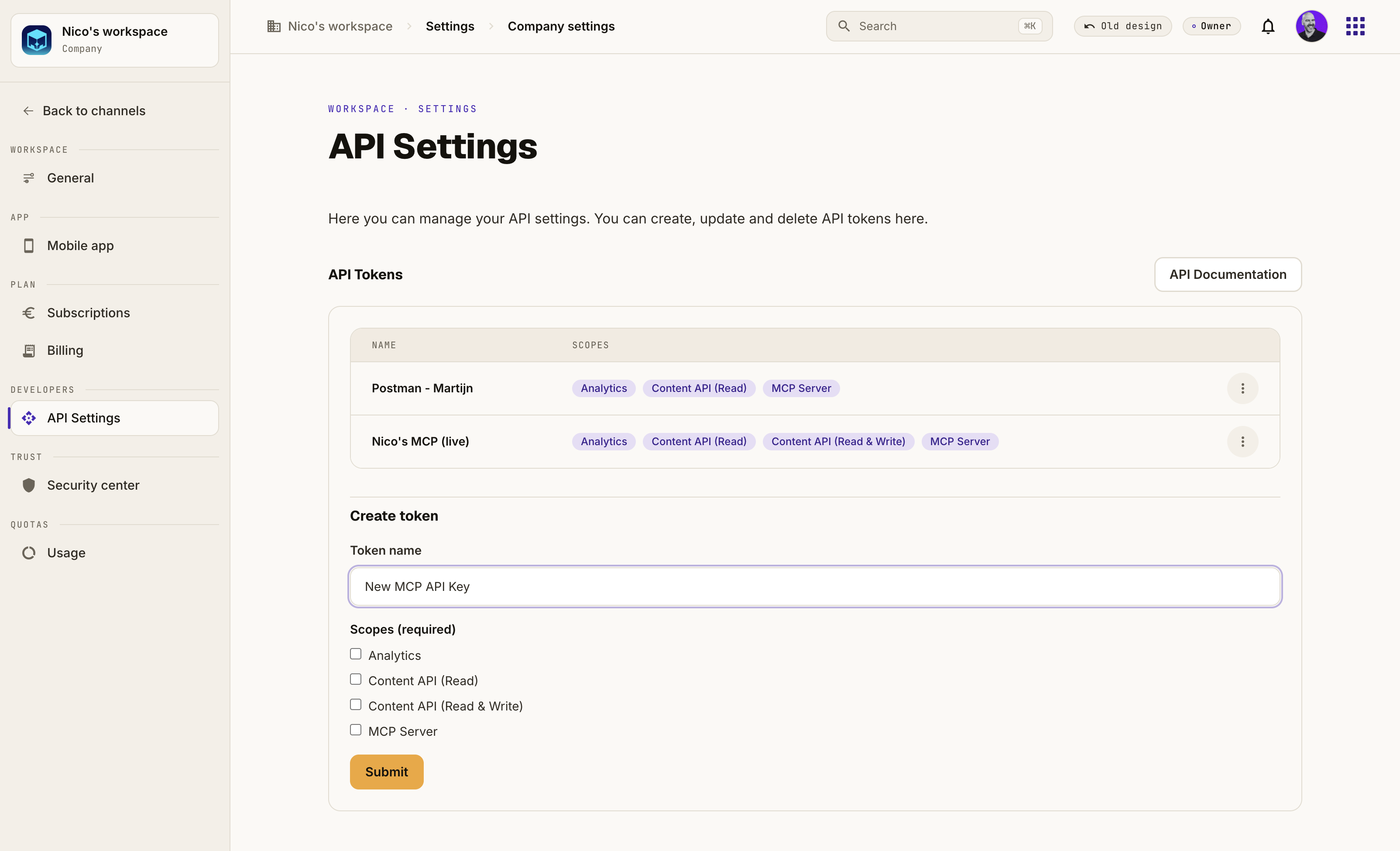
The place to start is the AI and MCP page. Claude is the primary supported assistant; any other assistant that supports MCP connects too. Then ask the first question above.
Which plan has it
- Scale has the MCP connection, with the Content API and the Analytics API.
- Company plans include it too.
- Essential and Professional do not include it.
Scale is €49 per month, excluding VAT. If you pay monthly, you can cancel monthly.
If you are on Scale
Log in, set up the connection and ask which episode held attention longest last month.
If you are on Professional
The MCP connection is part of the step to Scale, together with social analytics and dynamic content in full. Compare what changes on the pricing page.
If you are new here
Start a trial and put your own show in it. Fourteen days, no credit card, and your data stays in the EU from the first upload.